
If you experience problems logging into Security Center, such as error 502, you might need to clear your browser's cache to ensure the updated Security Center works properly.
Please follow these steps to solve the problem when using Chrome. If you're using another browser, please take the corresponding action.
- Go to the Security Center login page.
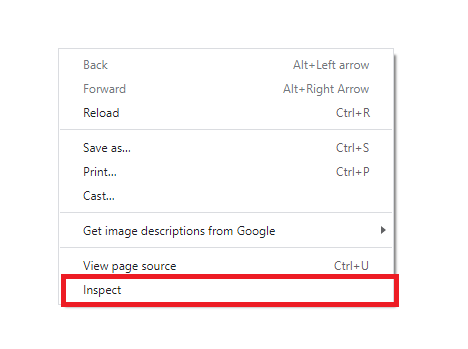
- Right-click in the Chrome browser and select Inspect.
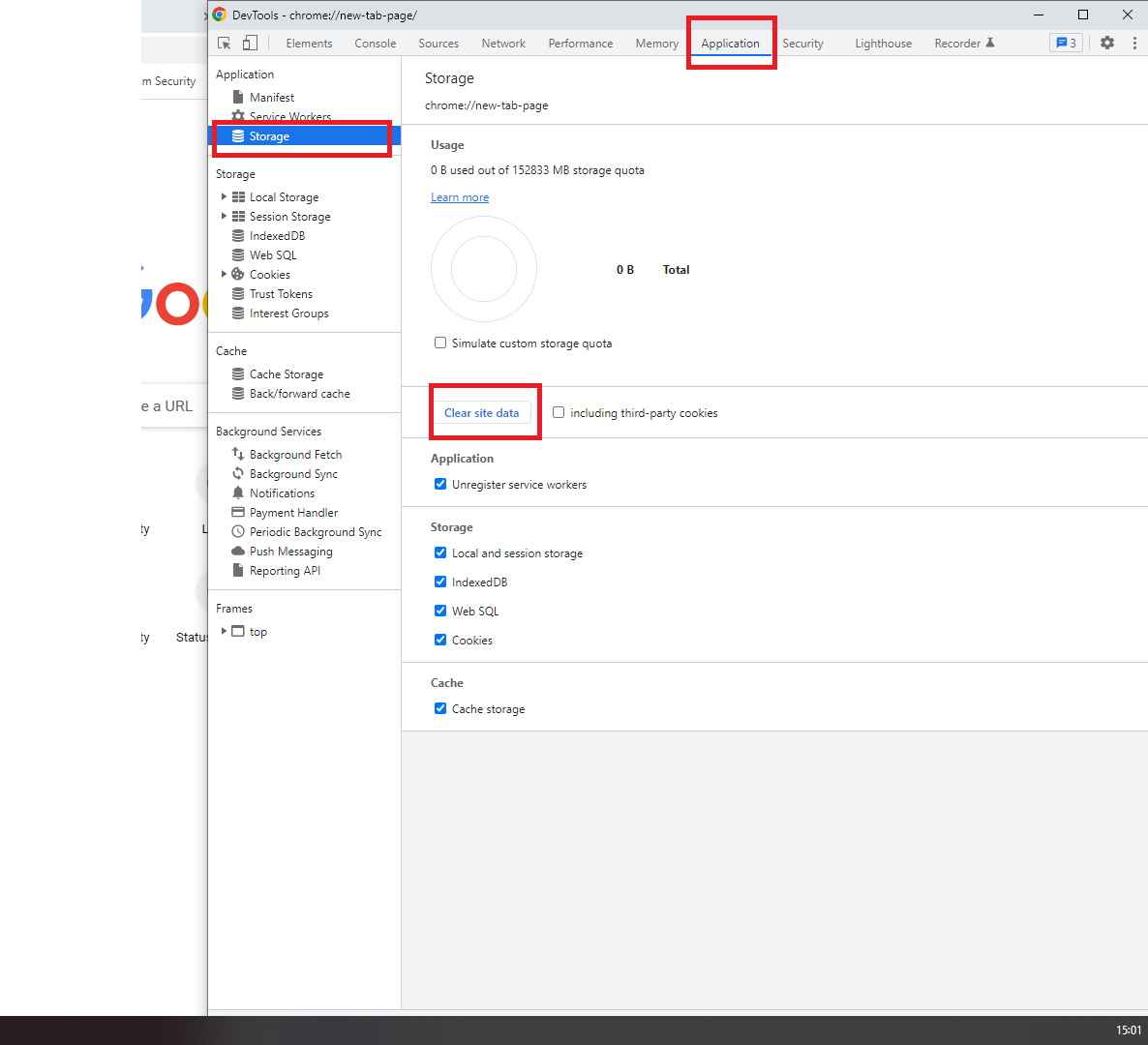
- Navigate to Application > Storage.
- Press Clear site data. Do not close the webpage in your browser.
- Refresh the browser webpage (Ctrl-F5) to deploy changes while you are still on the Security Center login page.
- The error message "Impersonation failed" should disappear once you've refreshed your browser.
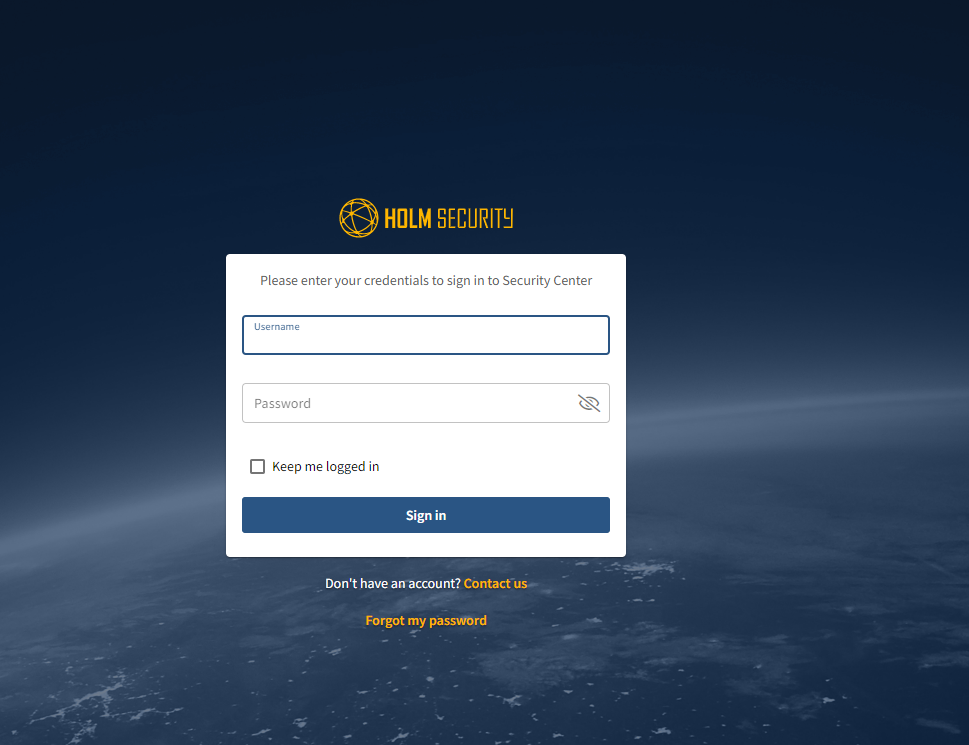
- Log into Security Center.
- Done!
Important
Ensure that you complete steps 5 and 6 above while on the Security Center login page. This includes clearing the site data and refreshing the web browser.
Accessing Security Center from Organizer
You can also use the steps above if you run into similar issues while impersonating an account from Organizer.