With column management, you can select which columns are displayed in the dashboard table and set their order of appearance. Each column belongs to a section: Customer, Commercial, or Security Center (Cloud).
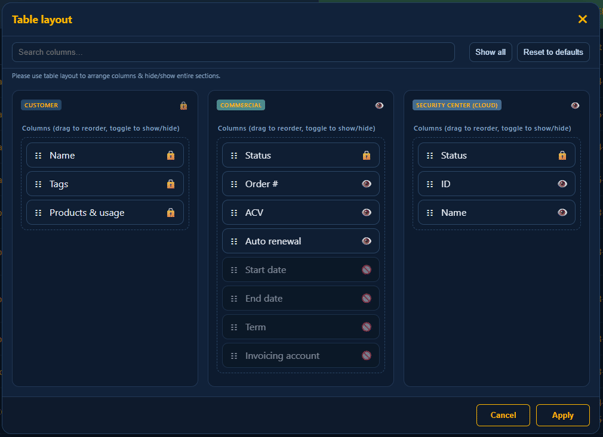
Within each section, you can choose to show or hide the entire section, manage the visibility of individual columns, and rearrange the columns within the section according to your preferences.
Please note that columns you choose to hide cannot be included as filter options or exported when using the Export to Excel function above the table.
If you wish to restore the default column order and visibility settings, simply use the reset button located at the top right corner.
Section and Column visibility
At the top of each section or next to each column name, you’ll find an icon that controls its visibility in the dashboard table:
- Lock
 : Indicates the section or column is locked to visible and cannot be hidden.
 - Eye
 : Indicates the section or column is visible in the table.
 - Ban
 : Indicates the section or column is hidden from the table.
Clicking the icon allows you to toggle the section’s or column's visibility, except for sections or columns marked with the lock icon.
Order of columns
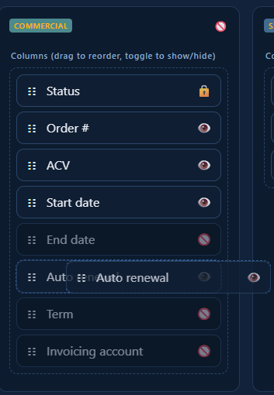
In each section, you can customize the order of columns to fit your preferences. To rearrange a column, click and hold the left mouse button on the six dots  to the right of the column’s name. Then, drag the column up or down within the section to your desired position and release the mouse button to set it in place. The column will immediately appear in its new location.