The account management section under Settings enables you to update your user profile with accurate information, manage credentials such as your name, email address, and password, and configure custom notification preferences. You can also administer user accounts by assigning appropriate roles to control access levels.
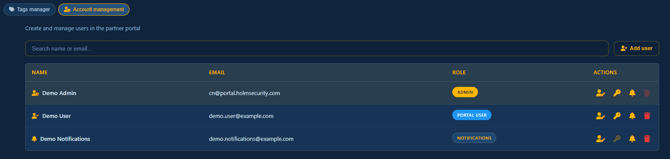
Adding users
To add a new user, click the Add user icon located at the top of the user list. Enter the required credentials, including the user's name and email address, select the appropriate role for the new account, and then click the Add user button to save. 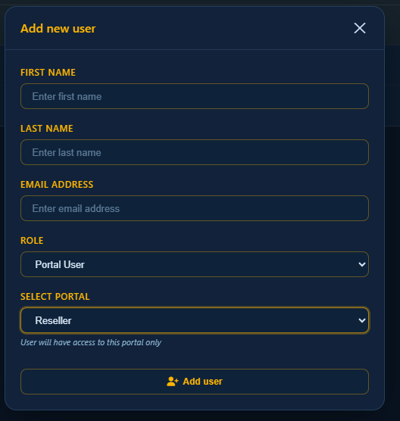
Roles
When creating a new user, you can choose between two available roles:
- Portal user: Assigning this role grants the user access to your partner portal. You must then select which partnership the user should have access to from a dropdown menu. If your account has multiple partnerships, you will be able to specify the appropriate one the user should be assigned to. Once the user is added, they will receive an email with login credentials, enabling them to access the partner portal with the permissions you have designated.
- Notifications: Assigning this role limits the user to receiving notifications only and but no access to the portal. The user will receive task notification emails on a daily or weekly basis, depending on your chosen configuration. For detailed information about the types of tasks that generate notifications, refer to the tasks knowledge base article.
Edit users
By pressing the edit user icon  you can edit the name as well as email of the user. please not that if you change the email address of your own role (the admin role) you will be forced to log out of the partner portal and then log back in with the new email address.
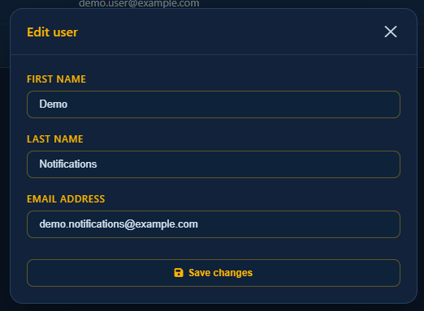
If the user is a portal user you will also be show which partnership they currently have access to but it will not be possible to switch such partnership. You will have to remove and crate a the user to assign him a new role.
Reset password
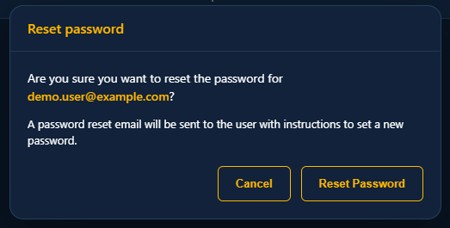
To reset a password, click the reset password icon  . Then, press the Reset password button to have a new password sent to the registered email address. If you reset the password for your own account (admin role), you will be logged out of the partner portal and will need to log in again using the new password.
Manage notifications
To customize your notification preferences, click the manage notifications icon  . Here, you can define how frequently you wish to receive notifications and select which categories of tasks you want included in your notification emails. If you wish to stop receiving all notifications, simply deselect all categories.
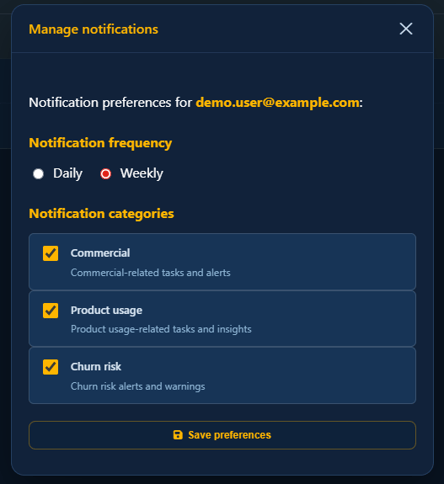
You have two notification settings you can configure:
- Notification frequency: Choose whether to receive a summary email of all outstanding tasks in your portal daily or weekly. If you select weekly, the notification email will be delivered every Monday morning.
- Notification categories: Select which categories of tasks you want included in the notification email. For a comprehensive overview of task types and their corresponding categories, please refer to the tasks knowledge base article.
Remove users
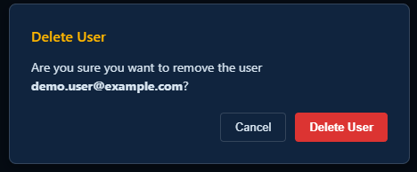
To remove a user account, click the remove user icon  . You will be prompted to confirm the deletion before the user is permanently removed from the system. If you delete a user with the portal user role, they will also receive an email notification informing them that their access to the portal has been revoked.