
For every company listed in the dashboard, you have access to in-depth customer information. This includes the list of assigned tasks for the account, a commercial overview with current order summaries, and multiple graphical insights such as product usage analytics, engagement matrices, and churn risk indicators. Note that the commercial overview submenu is available exclusively for reseller partnerships.

Each company you open in the Dashboard will appear in its own tab, which you can easily rearrange by dragging to your preferred order. To close a company tab, simply click the X icon next to the company name.

Tasks
In the tasks submenu, you will find a list of tasks assigned to this customer. Each entry displays the task title along with key task details. To understand the reason behind a task’s creation, simply click on the task to navigate directly to the relevant section within the company submenu, where you can review the information that triggered the task. The counter above the tasks submenu indicates the total number of open tasks, while the color coding—red for high, yellow for medium, and green for low—reflects the priority of your outstanding tasks.

To learn more about the different types of tasks generated within the dashboard, please consult the tasks knowledge base article.
Commercial Overview (Available exclusively for reseller partnerships)
Within the commercial overview submenu, you will find detailed commercial information for each customer, including their total annual contract value (ACV) and comprehensive details about their active subscriptions and associated products. This section also enables you to efficiently manage subscription renewals as customers approach the end of their current agreements.

Subscription details

The subscription details section displays the following order information:
- Start date: Indicates when the initial order was placed and the subscription commenced.
- End date: Shows when the current subscription period is scheduled to conclude.
- Total term: Represents the total number of months from the initial start date to the subscription’s end date.
- Current contract term: If the contract has been renewed, this field reflects the subscription term since the most recent renewal.
- Months remaining: The number of months left until the current subscription period ends.
- Auto renewal: Specifies whether the subscription will renew automatically or expire at the end date.
- Renewal status: Reflects the current status of the subscription renewal process.
- Account name: The customer’s name as registered in Holm Security’s financial system.
- Invoice account: The name of the entity designated to receive invoices for this customer.
- Annual Contract Value (ACV): The annual contract value of the subscription.
- Total Contract Value (TCV): The total contract value over the subscription period.
Product details

The product details section provides the following information for each order:
- Charge plan name: Lists the names of the products included in the subscription.
- Quantity: Indicates the number of licenses procured for each product.
- Annual amount: Shows the annual charge applied to the product.
- Monthly amount: Displays the monthly amount charged for the product.
- Price period: Specifies the pricing period applicable to the subscription.
- Billing period: Indicates when billing occurs for the subscription.
Manage renewals
For each subscription, you are required to inform Holm Security of the renewal decision and specify the current renewal status. By selecting the Manage renewal button, a slide-out panel will appear on the right, allowing you to update the renewal stage—options include Not Started, Initiated, Will Churn, Renewed, or On Hold. Regardless of the renewal stage, your assigned Customer Success Manager will remain your primary point of contact throughout the renewal process and will receive the information you provide.
Email notifications are sent either weekly or daily, based on how close each customer is to the end date of their current subscription. These notifications provide direct links to the relevant customer tabs requiring renewal. Simply click a company name in the email to access their account and proceed with the renewal process.
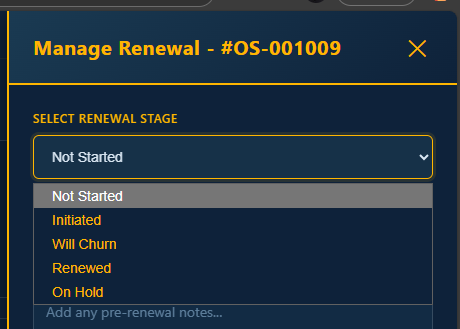
For each stage of the renewal you will have to provide Holm Security with a list of information
Initiated
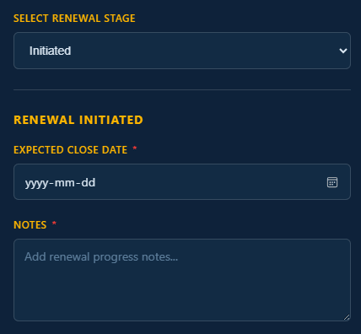
In the Initiated stage, you are required to provide Holm Security with an expected close date for the renewal, along with explanatory notes detailing the rationale behind your selected close date.
Will Churn
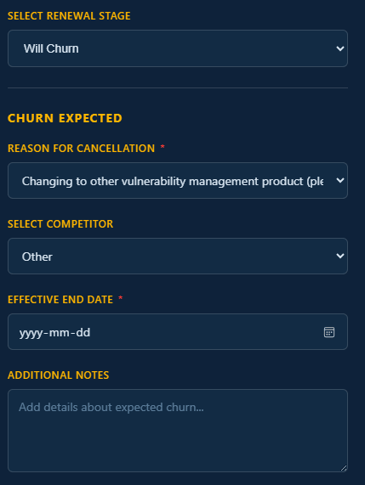
In the Will Churn stage, if the customer decides not to renew their subscription, you must select a specific reason for the cancellation and specify the effective end date—typically the end date of the current subscription period. If the effective end date differs from the standard subscription end date, please provide an explanatory note detailing the reason for this variance.
Renewed
In the Renewed stage, if the customer has chosen to renew their subscription, and the renewal is based on the same contract terms—including product names and quantities—you may leave the “New Contract Terms” field unchecked. The new Annual Contract Value (ACV) will be automatically calculated using the current ACV and the standard price index adjustment from the previous contract term. You will also need to select the contract term for the renewed subscription period and can add any relevant notes you wish to share with Holm Security.
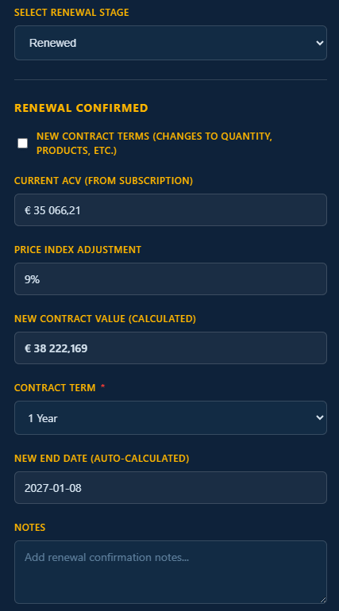
If you would like to modify the existing contract terms—for example, by increasing the number or quantity of products—at any point during the current subscription period, simply select the "New Contract Terms" option. You will then be prompted to provide the necessary updated information related to the contract changes.
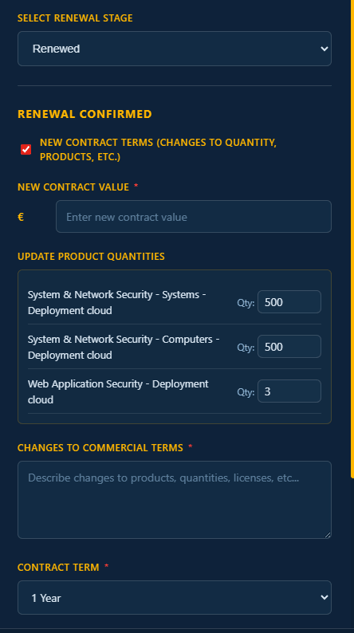
- New ACV: Enter the revised Annual Contract Value as determined by the updated contract terms.
- Product quantity adjustments: Review the current list of subscribed products. If you need to increase or decrease the quantity for any product, update the adjusted quantity accordingly.
- Commercial term changes: Provide a detailed explanation of any modifications to commercial terms—such as the addition or removal of products, or other changes requiring updates before the renewal of the subscription can be finalized.
- Contract term: Select the duration for the new contract period.
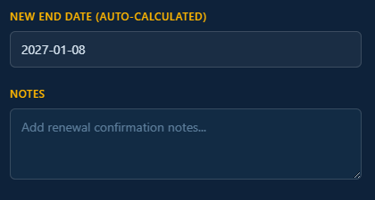
- New end date: This date is automatically calculated based on the selected contract term and the current end date.
- Notes: Enter any additional remarks you wish to include.
On hold
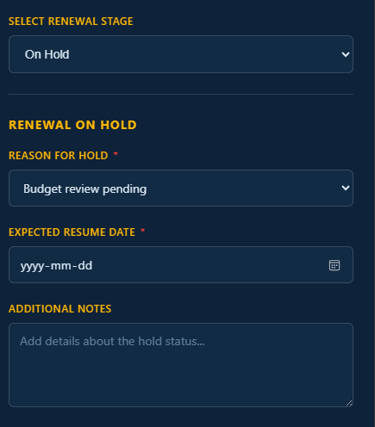
If you plan to renew a customer’s subscription but it is currently on hold, you can update its status to “On Hold” in the system. You will be prompted to provide a reason for the hold and indicate when you anticipate resuming renewal discussions with the customer.
Product usage
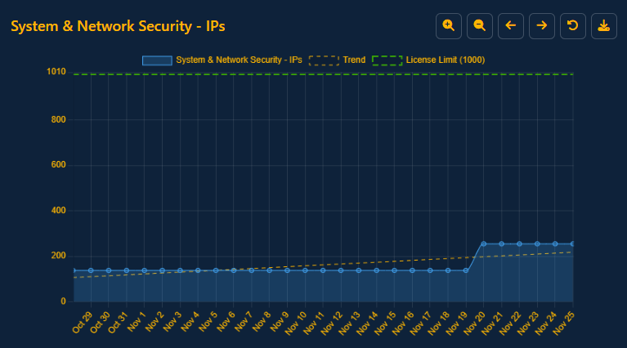
Within the product usage submenu, you can view graphical representations for all currently active products. For customers with a direct commercial agreement, the graphs also display current usage levels in relation to their licensed capacity, providing clear insight into license utilization. For guidance on navigating and adjusting any of the dashboard graphs, please refer to the general graph controls section at the end of this article.
If your customer subscribes to the Phishing Simulation & Awareness Training product, instead of a graphical display, you will see a list of phishing campaign sendouts. This list provides key details for each campaign, including the campaign name, send date, recipient count, and additional relevant information.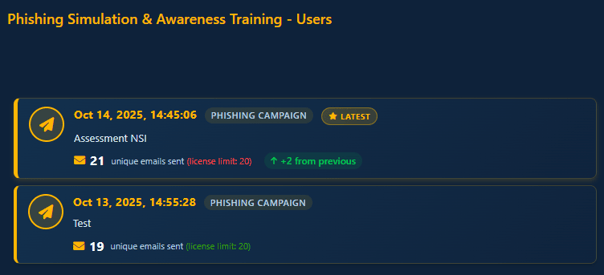
Engagement matrix
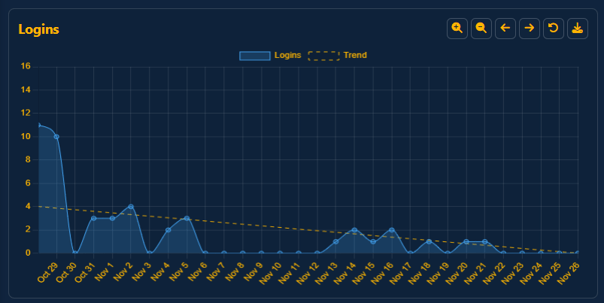
Within the engagement matrix submenu, you can access a range of graphs that provide valuable insights into your customer’s activity within the Security Center.
These visualizations display key engagement metrics such as the number of logins, trends in risk scores (increases or decreases), the frequency of scans performed across individual products, and additional engagement indicators. This comprehensive view enables you to monitor and understand how each customer is interacting with their Security Center over time.
For guidance on navigating and adjusting any of the dashboard graphs, please refer to the general graph controls section at the end of this article.
Churn risk indicators
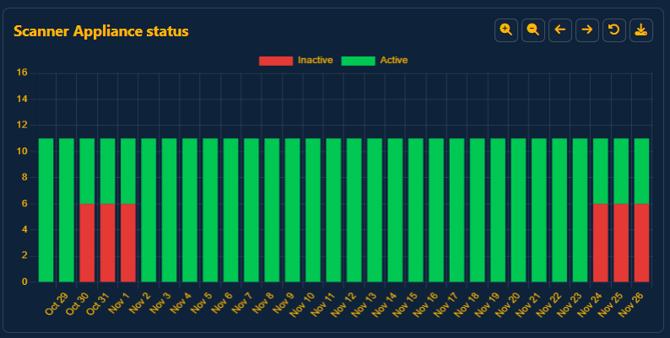
Within the churn risk indicators submenu, you can access a series of graphs that deliver actionable insights into potential churn factors, such as failed scans or instances where scanner appliances have gone offline.
This comprehensive overview enables you to quickly identify any obstacles that may be hindering successful vulnerability scans, helping you assess whether a customer’s environment may be exposed to increased security risks as a result.
For guidance on navigating and adjusting any of the dashboard graphs, please refer to the general graph controls section at the end of this article.
General graph controls
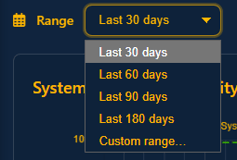
You can adjust the data displayed in any product usage, engagement matrix, or churn risk indicator graph by selecting your preferred date range from the dropdown menu located at the top of each graph. To define a custom timeframe, choose the “Custom range” option within the same dropdown.
For each graph, you can further tailor your view by zooming in or out, panning horizontally to review different time periods, resetting the display to the selected range, or downloading the graph as a PNG file.
The following control buttons are available for interacting with the graphs:
- Zoom in: Narrows the displayed date range to provide a more detailed view.
- Zoom out: Expands the displayed date range to show a broader timeframe.
- Pan right: Shifts the date range forward, allowing you to examine more recent data.
- Pan left: Shifts the date range backward to review earlier periods.
- Reset: Restores the graph to the originally selected date range.
- Download: Exports the current view of the graph as a PNG file, which you can easily include in reports or presentations.