
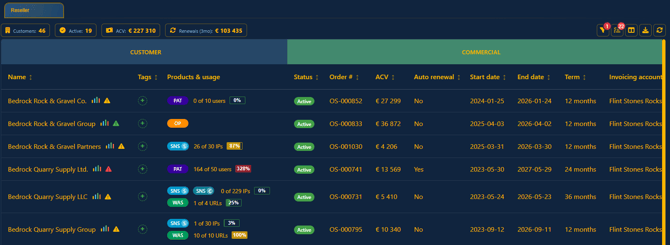
The Dashboard for Reseller partners serves as your central landing page, offering a consolidated overview of all associated customer accounts. Here, you can quickly access essential metrics, including the total number of customers, active subscriptions, Annual Contract Value (ACV), and upcoming renewal ACV. This primary dashboard is the first interface you see upon logging in.
Summary Section
At the top of the table, you’ll find four primary indicators that offer an at-a-glance summary of your customers’ financial and account status.

- Customers: Displays the total number of customer companies that are currently linked to your partner account.
- Active: Indicates the active subscription count from all of your associated companies.
- Annual Contract Value (ACV): This represents the total ACV for all active subscriptions across all customers as of today's date. This helps you understand the current financial value of your portfolio.
- Renewals (3mo): Displays the total ACV for all customers with subscriptions scheduled to renew within the next three months. Clicking the renewal indicator will pop up a list of customer who are to renew in the next 3 months and you can open up each one to see the details by clicking on the name of the company.
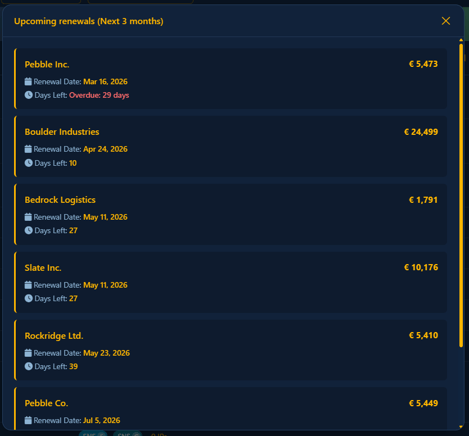
Table buttons
Above the table to the right you will find several buttons that you can click to manage the table.
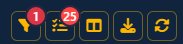
Each button serves the following function:
- Filter: Allows you to filter the data displayed in the table. The number indicates the number of filters currently applied. For guidance on configuring filters, refer to the Filters Knowledge Base article.
- Tasks: Provides a consolidated view of all generated tasks across your customer base. The number indicates the number of tasks currently open. For detailed instructions on managing tasks, please consult the tasks Knowledge Base article.
- Table layout: Enables you to customize the structure of the table. Select which sections and columns to display and rearrange their order as needed. For detailed steps on table configuration, refer to the Column management Knowledge Base article.
- Export table: Exports the current table data to an Excel file. The exported file will reflect any filters you have currently applied, ensuring your exported data matches what is visible on-screen.
- Refresh table: Updates the table with the latest data from the database. Click this button to ensure you are viewing the most recent information.
Subscription table
Below the indicators, a detailed subscription table displays each customer alongside comprehensive information about their account. Every row represents a customer, outlining attributes such as product utilization, license and subscription status, billing cycle details, and additional key metrics.
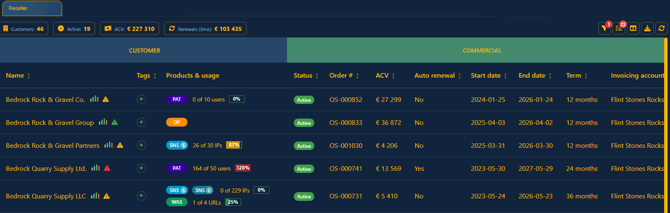
The columns are organized into three distinct sections:
- Customer: This section presents key details such as the customer’s name, the products they have procured, and their current usage metrics.
- Commercial: Here, you will find high-level commercial information for each customer, including order status, Annual Contract Value (ACV), order start and end dates, and additional relevant commercial data.
- Security Center (cloud): For customers utilizing the cloud deployment of Security Center, this section displays associated details such as Security Center status, ID, and name.
You can sort each of the columns by clicking on the name of the column.
The sections below provides further details on each column.
Customer : Name
Displays the name of the customer company associated with your partner account. Directly after the company name, two icons may appear. These icons are only visible if the customer has an active subscription or outstanding tasks; if neither is present, no icons will be displayed next to the company name.
- The first graph icon
 , shown for all customers with an active subscription, enables you to open a customer tab above the table. This customer tab provides an in-depth overview of the selected customer, including outstanding tasks, commercial summaries, product utilization statistics, engagement insights, and indicators of churn risk. For further guidance, please consult the Company information Knowledge Base article.
- The second triangle icon
 indicates that there are outstanding tasks associated with this customer - such as commercial actions like upcoming renewals, license overutilization, and other important items. The color of the triangle represents the current priority level of tasks assigned to the company. For more information on task assignment and definitions, please refer to the Tasks Knowledge Base article.
Customer : Tags
The “Tag” column allows you to assign custom identifiers to each customer, enabling you to efficiently organize, filter, and highlight specific accounts based on criteria relevant to your business needs. Please note: Tags must first be configured in the Tags manager within Settings before they can be assigned to customers.
- To add a tag press the
 .
. - A list of tags as defined in the Tags manager will be shown which you can now select from
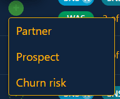
- There is no limit to the number of tags you can assign to each customer.

- If you want ever want to remove a tag you can press the
 inside the tags label.
Customer: Products & Usage
In the Products & Usage column, you’ll find a comprehensive list of all products included in the customer’s subscription, along with their current usage metrics, licensed quantities per product, and the percentage of each license that is currently utilized.

Each product badge indicates which products are included in the customer’s subscription. Below, you can find the corresponding product name that each badge represents.
- SNS-S = System & Network Security (Systems)
- SNS-C = System & Network Security (Computers)
- WAS = Web Application Security
- API = API Security
- PAT = Phishing Simulation & Awareness Training
- CS = Cloud Security
- OP = OnPrem
For each product, you can view the current usage levels per customer. For example, if a customer holds a license for one web application but is actively scanning three URLs, the utilization percentage will display as 300%.

Commercial : Status
Indicates if the customer currently holds an active subscription. When a subscription is active, additional order details become visible in the subsequent sections.
Commercial : Order #
Each subscription is associated with a unique order ID. This order number is the internal reference used and can be used in inquiries with Holm Security’s finance team.
Commercial: Annual Contract Value (ACV)
Displays the total value of the active subscription in the customers’ local currency. The currency is display together with the order.
Commercial: Automatic renewal
Indicates whether the subscription is set to automatically renew once the contract period ends.
Commercial: Start date
The contract period start date. The format of the date is YYYY-MM-DD wherein YYYY is the year, MM is the month and DD is the day.
Commercial: End date
The current subscription period end date. The format of the date is YYYY-MM-DD wherein YYYY is the year, MM is the month and DD is the day.
Commercial: Term
The current subscription period in months.
Commercial: Invoice account
This field shows the customer account that will receive the invoice for the associated subscription. This helps to identify the billing recipient.
Security Center (Cloud): Status
Describes the commercial classification assigned to each Security Center account. The possible values are as follows:
- Paying subscription: Actively billed, ongoing subscription.
- Paying one-time: Customer billed once; not recurring.
- Trial: Temporarily active account designated for evaluation purposes.
- Demo: Account allocated exclusively for sales demonstrations.
- Internal: Account used solely for internal purposes, such as training or quality assurance.
- Archived: Indicates the Security Center is no longer active and has been archived.
- None: No cloud-based Security Center has been assigned to this customer.
Security Center (Cloud): ID
Unique identifier for the associated Security Center account. Include this when contacting Support for quicker resolution.
Security Center (Cloud): Name
The name of the associated Security Center account linked to the customer.